WPForms Quiz Addon: Easily Build Interactive Quizzes
Use WPForms Quiz Addon to build interactive quizzes in WordPress with scoring, results, screenshots and a practical setup checklist.
A good quiz does more than collect answers: it helps visitors make a decision, gives you cleaner lead data, and turns a static WordPress page into something people actually finish. The WPForms Quiz Addon is useful when you already like the WPForms builder and want scoring, result messages, and entry tracking without moving to a separate learning platform. For search intent, this article focuses on the practical "wordpress quiz plugin" workflow: build the quiz, score it, test the results, and publish it in a way that still feels fast and professional.
When WPForms Quiz Addon is the right choice
Use WPForms Quiz Addon when the quiz is part of a marketing, education, support, or lead-generation flow. It is a strong fit for product finders, knowledge checks, onboarding questionnaires, newsletter magnets, and short customer qualification forms.
It is not the best fit for a full LMS with certificates, lesson progress, student accounts, or advanced reporting. In those cases, use a learning platform. For a lightweight quiz builder inside WordPress, WPForms keeps the workflow simple.
Example setup: a five-question WordPress quiz
Start with one clear outcome. In this example, the quiz checks whether a visitor understands the basics of WordPress before they choose a support or development package.
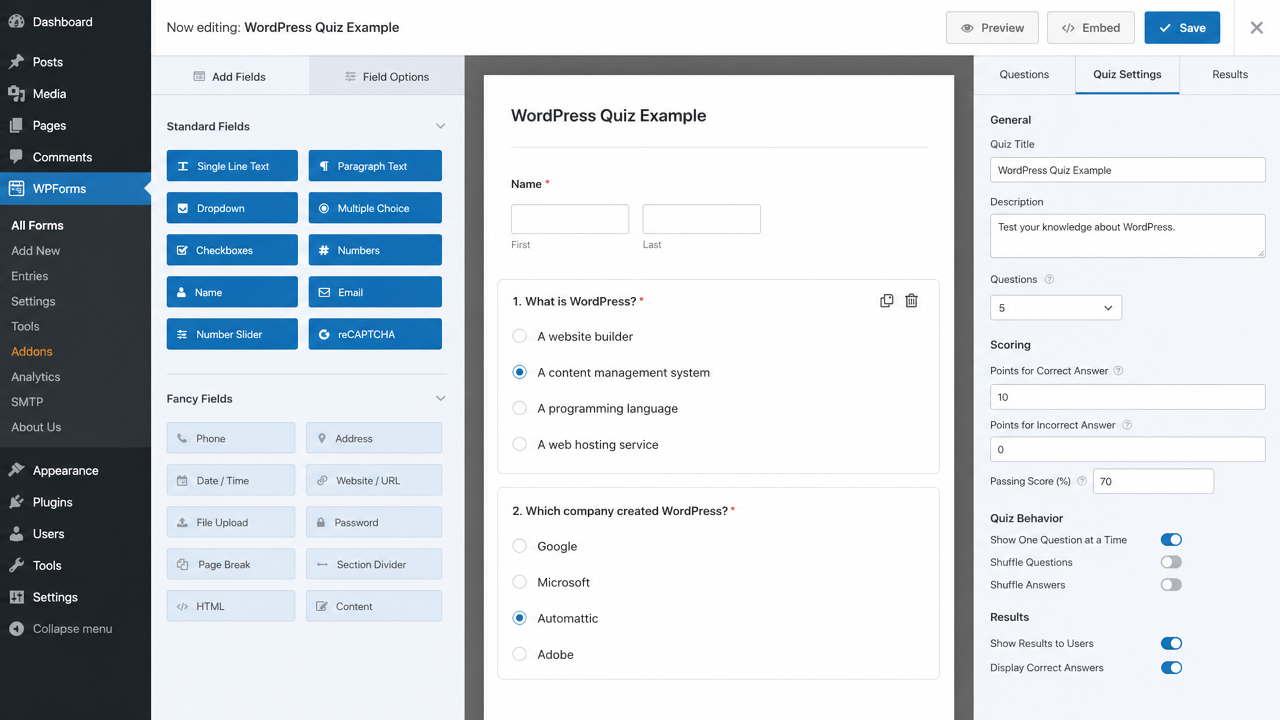
The structure is deliberately small:
| Quiz part | Example | Why it matters |
|---|---|---|
| Title | WordPress Quiz Example | Tells the visitor what they are starting |
| Questions | 5 multiple-choice questions | Short enough to finish on mobile |
| Correct answer score | 10 points | Keeps scoring easy to explain |
| Passing score | 70% | Creates a clear pass/fail result |
| Results | Show score and correct answers | Gives users immediate feedback |
Build the form fields first
Create a new form and add the fields you need before touching scoring. For most quizzes, that means a name field, an email field, and one multiple-choice field per question. Keep answer options short; long answer text becomes difficult to scan on mobile.
For each question, write the correct answer first in your notes, then add the wrong answers. This avoids accidental scoring mistakes when you are editing quickly.
Configure scoring and pass/fail logic
Once the questions are in place, open the quiz settings and assign points to each correct answer. Use one scoring model across the whole quiz. A simple setup such as 10 points per correct answer is easier for users to understand than mixed scores.
For a five-question quiz, a 70% pass mark means users need at least four strong answers depending on rounding. Test this yourself with a perfect result, a passing result, and a failing result before the quiz goes live.
Results, entries, and notifications
The results screen is where many quiz forms feel unfinished. A visitor should immediately understand whether they passed, what they got right, and what to do next.
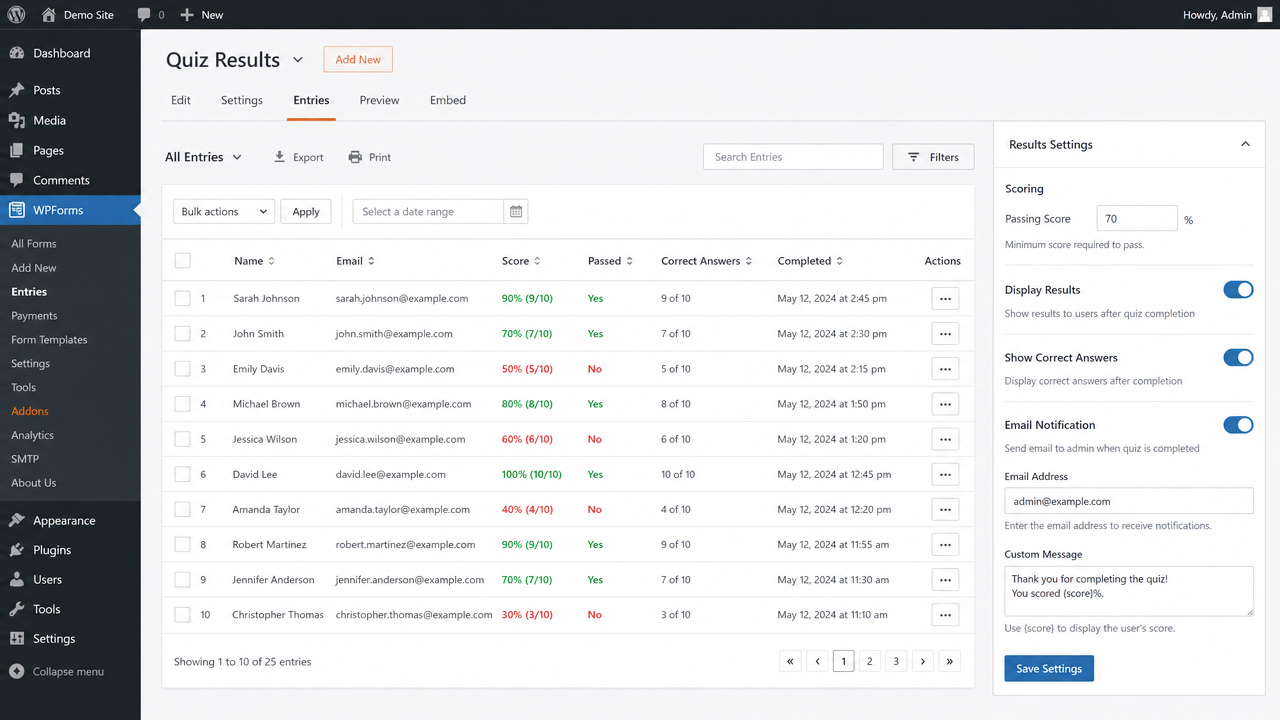
Use the entries table to review completion quality. If most users abandon the quiz, it is probably too long. If nearly everyone scores 100%, your questions may be too easy. If almost everyone fails, rewrite the confusing questions before blaming the audience.
Example result messages
Use separate result copy for each outcome:
- Passed: Great score — you understand the WordPress basics. The next step is applying them to your own site structure, speed, forms, and checkout experience.
- Almost there: You are close. Review the missed answers and retake the quiz after checking your WordPress dashboard settings.
- Needs work: Start with the fundamentals: pages vs posts, plugins, themes, backups, and updates.
This type of feedback is more useful than a raw percentage alone.
Publishing checklist for a better quiz experience
Before embedding the quiz on a live page, run through this checklist:
- Test the quiz on mobile and desktop.
- Submit one perfect score, one failed score, and one partial score.
- Confirm email notifications arrive at the right address.
- Check that result messages do not reveal private admin notes.
- Add a short introduction above the quiz so users know how long it takes.
- Keep the page fast by avoiding heavy popups, sliders, or unrelated embeds.
If your quiz collects order preferences, service requirements, or checkout-related details, keep that same discipline in your store checkout. Our WooCommerce Checkout Fields Manager helps store owners add only the custom checkout fields they actually need, without turning the payment step into a long survey.
SEO notes for quiz pages
A quiz page can rank, but only if it includes useful text around the interactive form. Search engines cannot evaluate a hidden form as well as they can evaluate clear headings, examples, FAQs, and supporting copy.
Use one H1, explain who the quiz is for, add a short example of what users will learn, and include FAQ content below the quiz. If the quiz targets a commercial keyword, add internal links to the relevant service or plugin page.
Conclusion
WPForms Quiz Addon is a good choice when you want an interactive WordPress quiz without building a custom app. Keep the quiz short, make the scoring transparent, test every result path, and support the form with useful page copy so both visitors and search engines understand the value of the page.
FAQ
Is WPForms Quiz Addon good for a simple WordPress quiz? Yes. It works well for short quizzes, product finders, lead-generation forms, and knowledge checks where you need scoring and entry tracking inside WordPress.
What is the best keyword target for this type of article? For broad SEO reach, "wordpress quiz plugin" has stronger search demand than the exact product phrase. Use the exact product name naturally, but structure the article around the broader problem users search for.
How many questions should a website quiz include? Five to ten questions is usually enough for a marketing or lead-generation quiz. Longer quizzes can work, but only when users clearly understand the value of finishing.
Should quiz results show correct answers? For educational quizzes, yes. Showing correct answers gives users immediate value. For qualification quizzes, you may prefer a result category or recommendation instead of showing every answer.
Can a quiz page rank in Google? Yes, if the page includes helpful written content, descriptive headings, internal links, image alt text, and FAQ schema. Do not publish a quiz embed on an otherwise empty page.
Do I need custom development for a quiz? Not for a straightforward scored quiz. Use a plugin first. Custom development only makes sense when the quiz needs complex logic, external API calls, account dashboards, or deep WooCommerce integration.